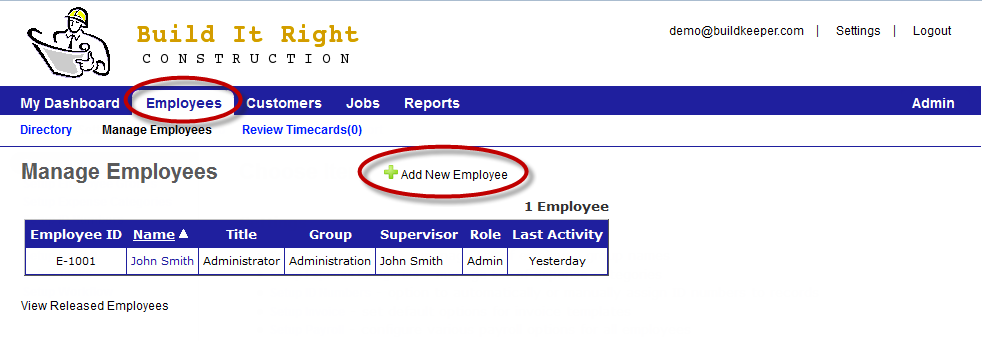
This is done under the Employees tab. Click the  Add New Employee button to begin entering your employees. If you have a large crew, you will want to first start with your managers and field supervisors.
 Important fields
Email – An email address is required to log in to BuildKeeper. We recommended you use an actual email address that belongs to the employee, whether it's a personal or work email. If neither is known, you can use a placeholder (e.g., joe@yourbiz.com).
Manager & Field supervisor – You must also assign a Manager and Field supervisor for each employee. It can be the same person or two different people.
- A Manager can both approve/reject and create timecards for employees that report to them.
- A Field supervisor can only create timecards for employees that report to them.
Enable employee login – This checkbox allows your employees to log in via the website or mobile app to record their hours. Either you or the user can set up the account password by going to http://www.buildkeeper.com/login/new after the user has been created.
Role – If you enable employee login access, you must also choose a role.
- Timecard allows the employee to only enter and submit timecards.
- Manager allows the employee to enter their own timecards, as well as enter and approve the timecards of employees they manage.
- Full allows complete account access except for the Admin area.You can have