As a Manager or Supervisor, you can enter time on behalf of an employee that reports to you.
To enter an employee's time
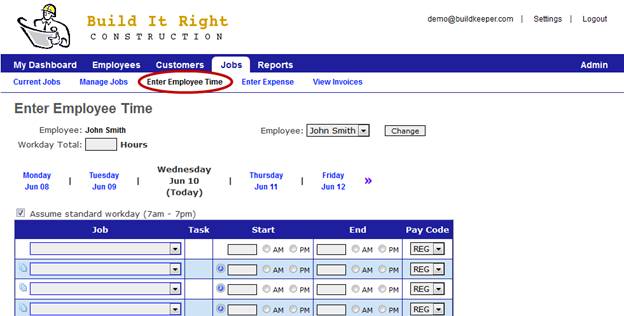
- Click Jobs > Enter Employee Time.
- Choose the employee you would like to enter time for and click Enter Time.
- Select the date you are entering time for. By default, the current day is selected, but you can navigate to another day by clicking on any of the adjacent days or on
 to jump to a specific day.
 - Decide if Assume standard workday (7am - 7pm) should be checked. Checking this box will automatically assign the am/pm selection as you enter hours.
- Using the drop-down menu in the Job column, select the Job.
- In the next column, select the Task performed.
- Under the next two columns, click the boxes and choose the hour and minutes for when the employee started and ended work on that task.
- Repeat steps #5-7 to complete all your employee's time entries for the day.
Pro tip: Use the helper icons to quickly complete the timecard.
You can also enter time for your crew using the BuildKeeper mobile app.