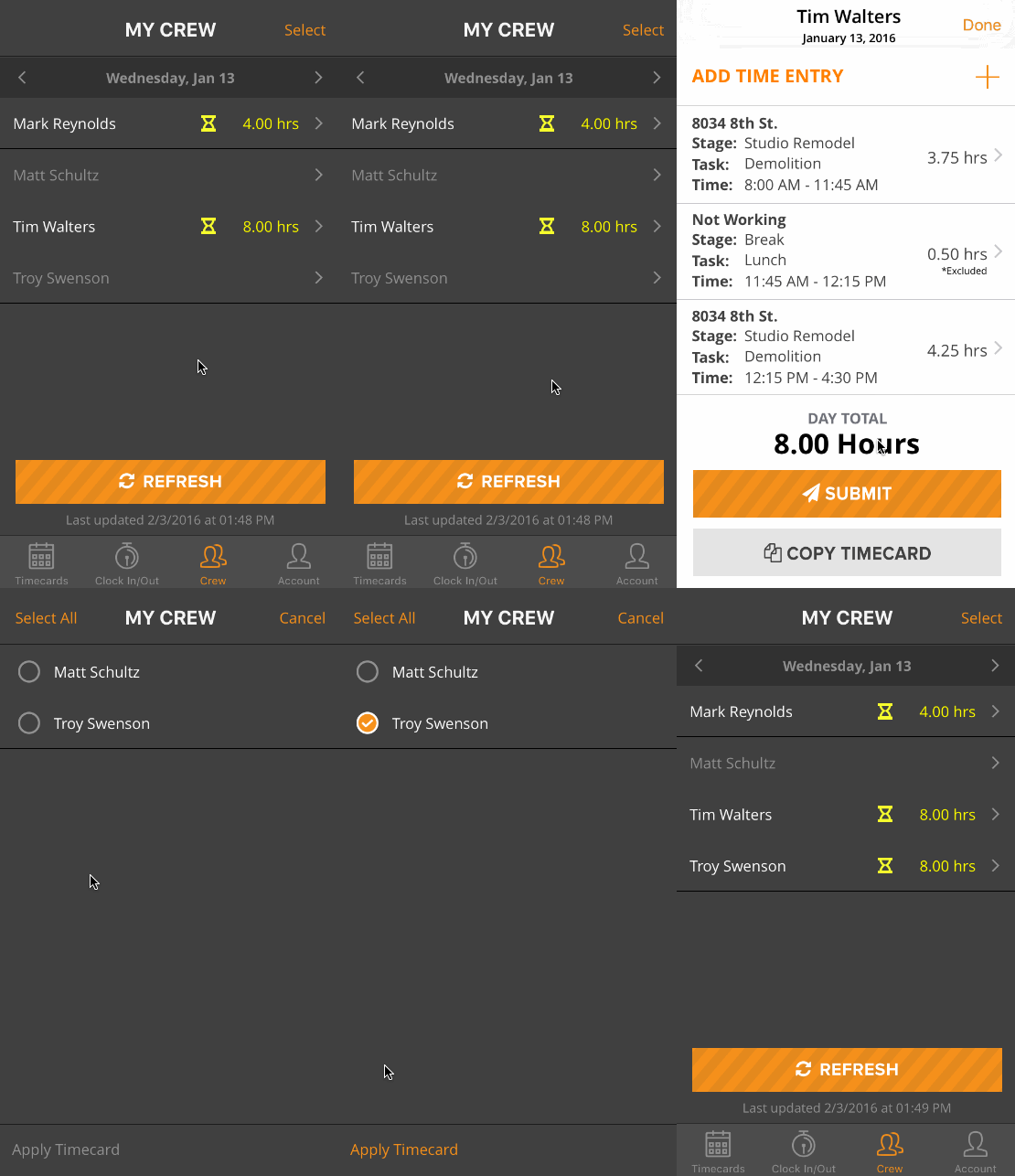
The Crew tab in the BuildKeeper mobile app allows you to easily review your crew's hours. You can access it by tapping on the  icon. Once a crewmember clocks in or adds time for a given day, the hours will appear in the tab alongside his or her name. As a crew manager or field supervisor, you can then view details, including the job, stage, task, and number of hours worked, for all the employees who report to you.
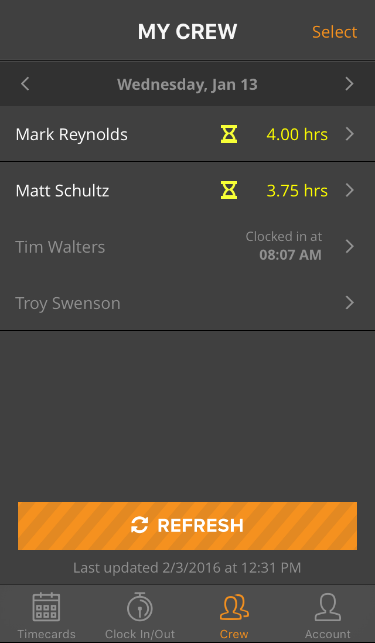
Note: Only users with Full or Manager Level access can see and use the Crew tab.
If a crewmember has not already entered hours for the day, crew managers and supervisors can create and submit timecards on his or her behalf. In addition, crew managers have the ability to approve an employee's timecard within the Crew tab. These actions can be done individually or for multiple crewmembers at once, and timecards can be copied over to other crewmembers for simpler time entry.
| Can enter time for others | Can approve or reject timecards | |
| Field Supervisor | YES | NO |
| Manager | YES | YES |
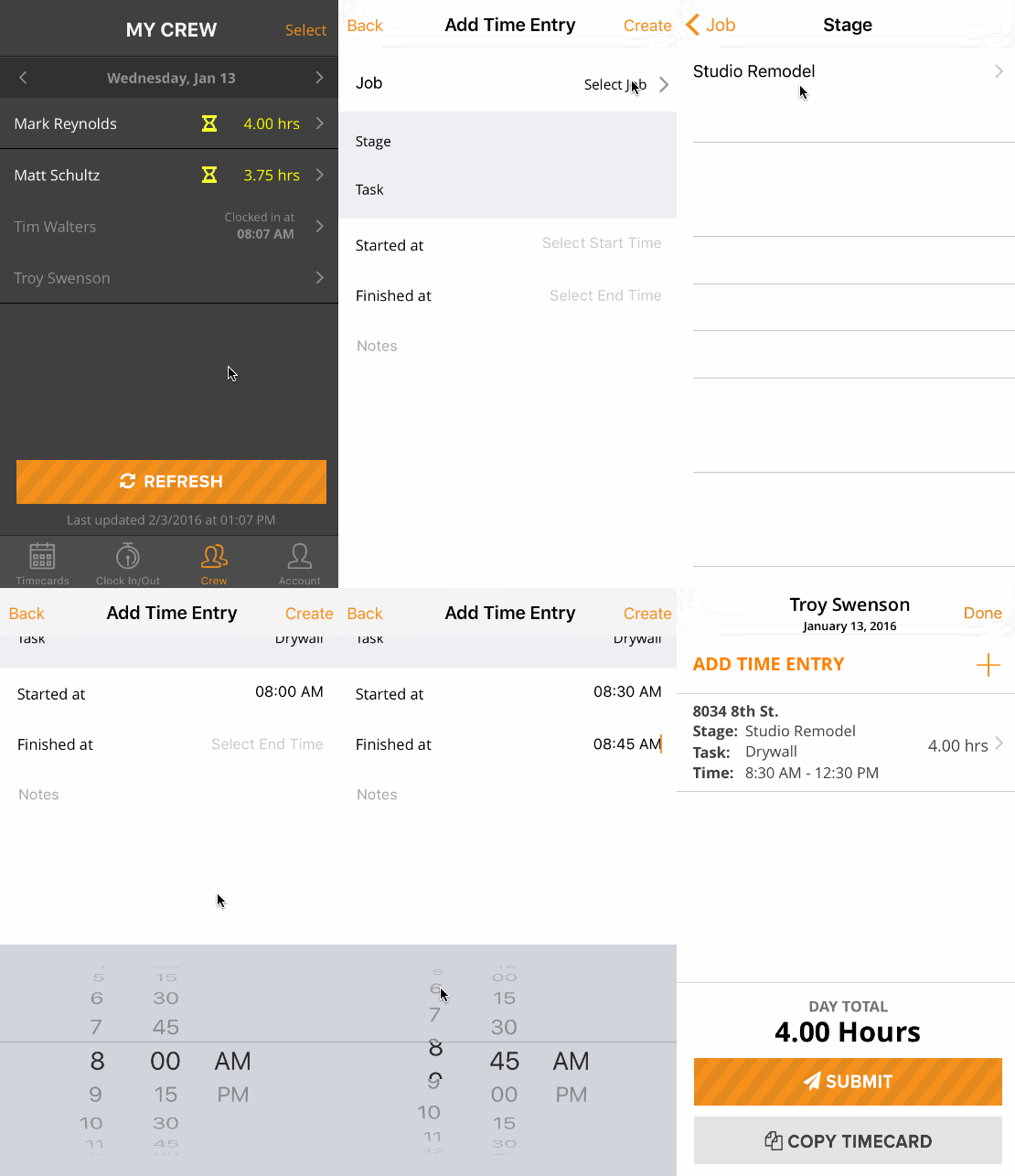
To enter and submit time for a crewmember:
- Tap the name of a crewmember who has not yet entered hours.
- On the time-entry screen, tap the + button.
- Tap Select Job > and choose the appropriate job, stage, and task.
- Tap Started at to set when the crewmember started working.
- Tap Finished at to set when the crewmember ended work.
- Tap Create on iPhone or
 on Android to complete the time entry.
 - If the crewmember worked another job or task that day, tap the + button again to add another time entry. Repeat steps 3-6.
- Tap the Submit button to send the timecard for approval. If you have Manager Level access, the timecard will be automatically approved.
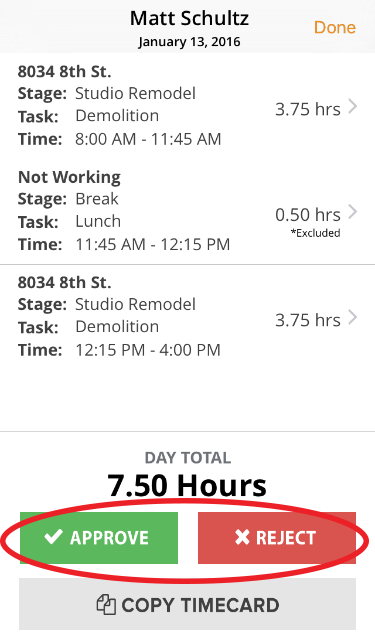
To approve or reject timecards individually (Managers only):
- Tap the name of a crewmember who has a timecard waiting for approval. Pending timecards are marked by an orange hourglass icon.
- On the time-entry screen, tap the Approve or Reject button to accept or send back the timecard.
- Hit OK to confirm. If rejected, the timecard goes to back to being in progress, and you can edit the hours as needed.
To approve or reject timecards in a batch (Managers only):
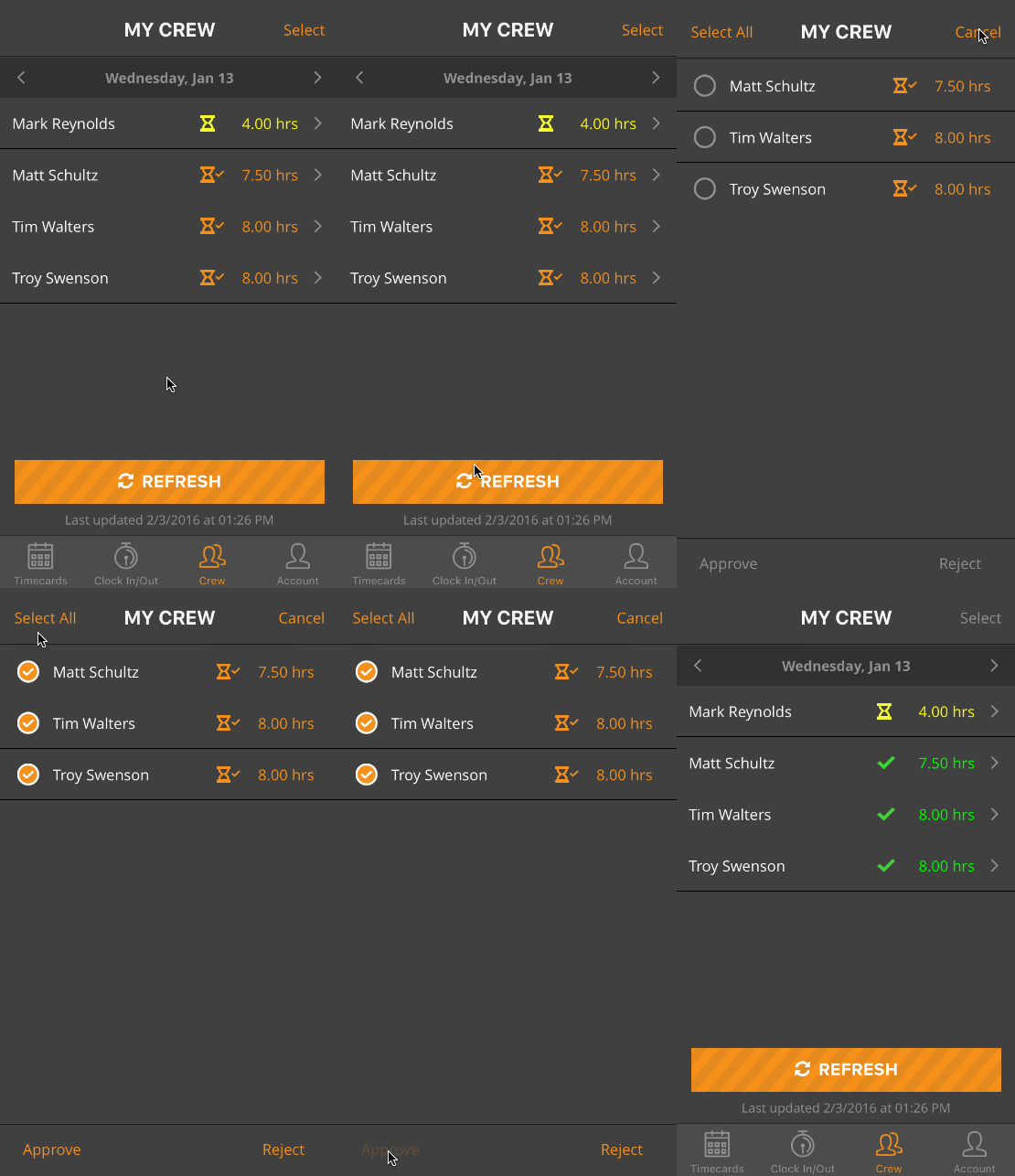
- Tap Select in the top-right corner. A list of all crewmembers with timecards waiting for approval will appear.
- Tap Select All on iPhone or All on Android to auto-select every crewmember's timecard.
- Tap Approve or Reject to accept or send back the timecards.
To copy timecards across crewmembers:
- Tap the name of a crewmember with hours entered that others on the team also worked. Timecards that are in progress, pending, or approved may all be copied.
- On the time-entry screen, tap the Copy Timecard button. A list of crewmembers who have not yet added time will appear.
- Tap to select the crewmembers you wish to add the hours to.
- Tap the Apply Timecard button to finish. New in-progress timecards with the copied hours will be created for the crewmembers.