*Plus & Pro Plans Only
Tracking the materials used on the job in BuildKeeper is easy, and essential for proper job costing. There are two ways to track materials:
Direct Entry
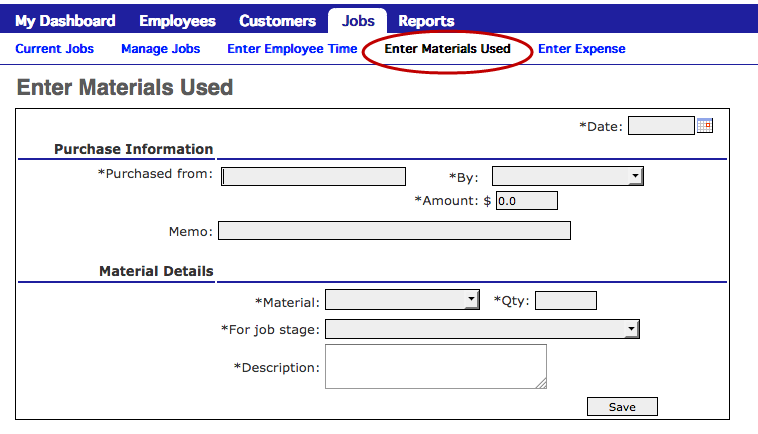
To enter materials used directly, go to the Jobs tab and select Enter Materials Used.
Be sure to complete all the required fields. After submitting the entry, a unique ID number will be generated. We recommend you write this ID number on the original receipt to mark that the material expense has been entered. You can also use the ID number for later reference.
On Timecards
Note: To record a material used with timecards, the material must have the option can record as a used material on time entries enabled.
Recording materials with both web-based timecards or the BuildKeeper mobile app are covered below.
Web
- Complete the timecard as normal and save.
- Next to the time entry to add materials to, click the +Materials button
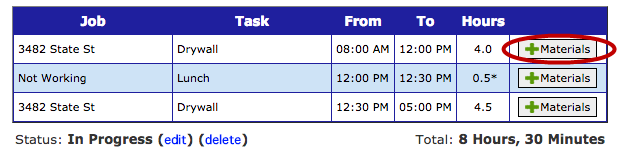
- In the materials list pop-up that appears, enter the quantities of each type of material used and click Save.
- The materials marked will be displayed under the time entry
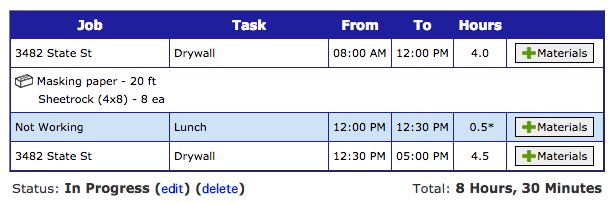
- Repeat steps 2 & 3 for all time entries where materials were used before submitting the timecard.
Note: To edit or remove material quantities, click the +Materials button again and adjust as needed. Clearing the quantity will remove it.
Mobile App
- Start a new time entry and complete the job, start and end times as you normally would.
- Above the Notes section tap the Materials Used field.
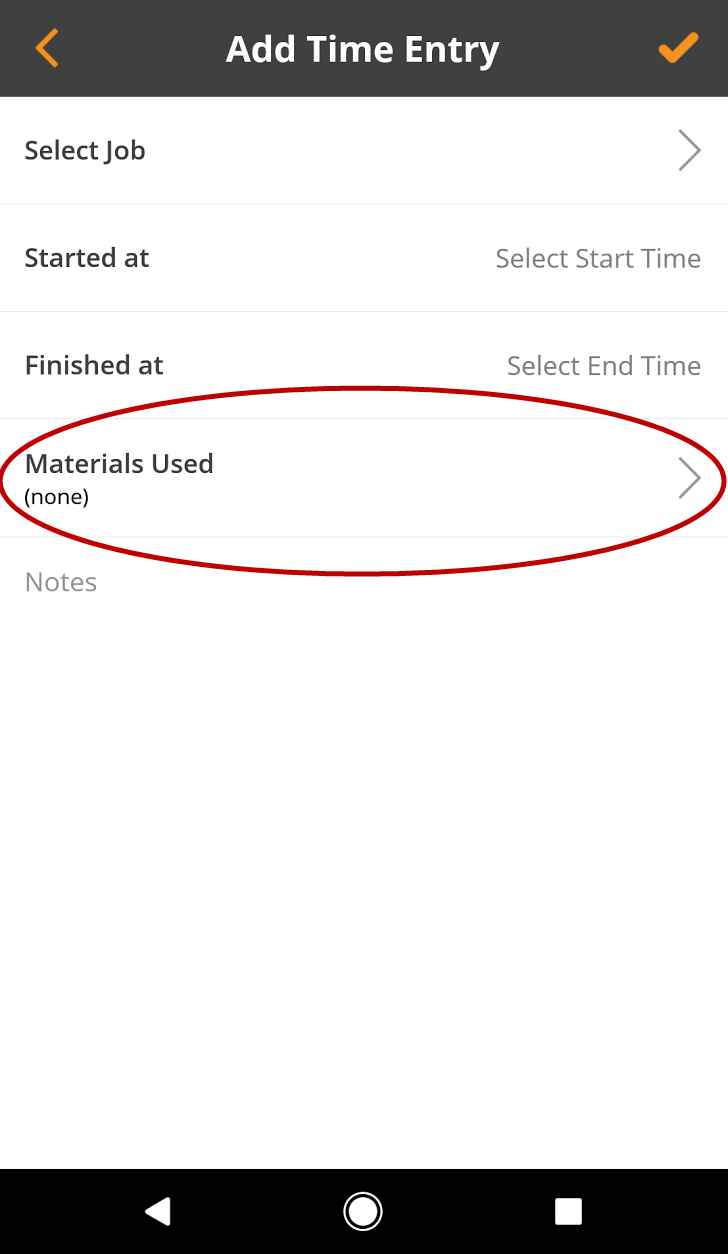
- On the next screen tap on the material you want to record as used.
- In the input window that pops-up, enter the quantity used and tap OK.
- Repeat steps 3 & 4 for all materials used with this time entry.
- Once complete, tap Done on iOS or
 on Android in top right corner.
 - You will return to the time entry to complete.
Note: To edit or remove material quantities, tap the Materials Used button again and adjust on the next screen as needed. Clearing the quantity will remove it.