The Clock in/out feature allows you to track your day as you go. This includes taking breaks and switch jobs or tasks. You can access the feature by tapping on the  icon at the bottom of your smartphone screen.
To track your time with clock in/out:
- Tap the CLOCK IN button at the bottom of the screen.
- The main timer will turn from grey to orange to indicate that the clock has started running. On the left side of the timer, you will see the Clock In time, which indicates when the timer was started.
- To clock out, first tap Select Job and pick the job and task you're currently working on. You can also tap Add Note to leave comments for that time entry. Then tap the CLOCK OUT button.
- Tap Review & Submit Time.
- After verifying the timecard is accurate, tap Submit.
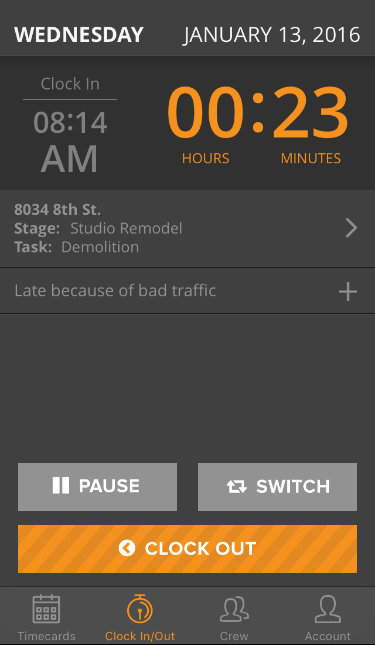
To switch jobs or tasks while on the clock:
- After clocking in, tap Select Job and pick the job and task you're working on.
- Once you're ready to work on a new job or task, tap the
 button. The Select Job and Add Note fields will clear.
 - Tap Select Job to record hours for the new job or task.
Your past activity will be recorded as a time entry in the background. The main timer is a cumulative timer, so it will continue running without resetting.
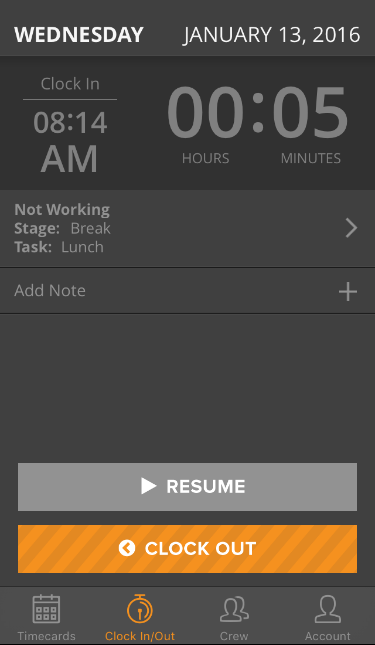
To take a break while on the clock:
- If you haven't already, clock in and select the job and task you're working on.
- Tap the
 button. The timer will turn grey and reset to zero. The timer will then start recording the length of the break.
 - Once your break is over, tap Select Break to choose the type of break. Then tap the
 button.
The break timer is an instance timer, so it will only show the length of the break. Once you resume working, the main timer will pick back up where it left off.
Notes:
- You cannot make changes to the current day's time entries while you are clocked in.
- All timer sessions automatically expire at midnight if they haven't been closed out. So if you forget to clock out, you will have to manually make the last time entry.