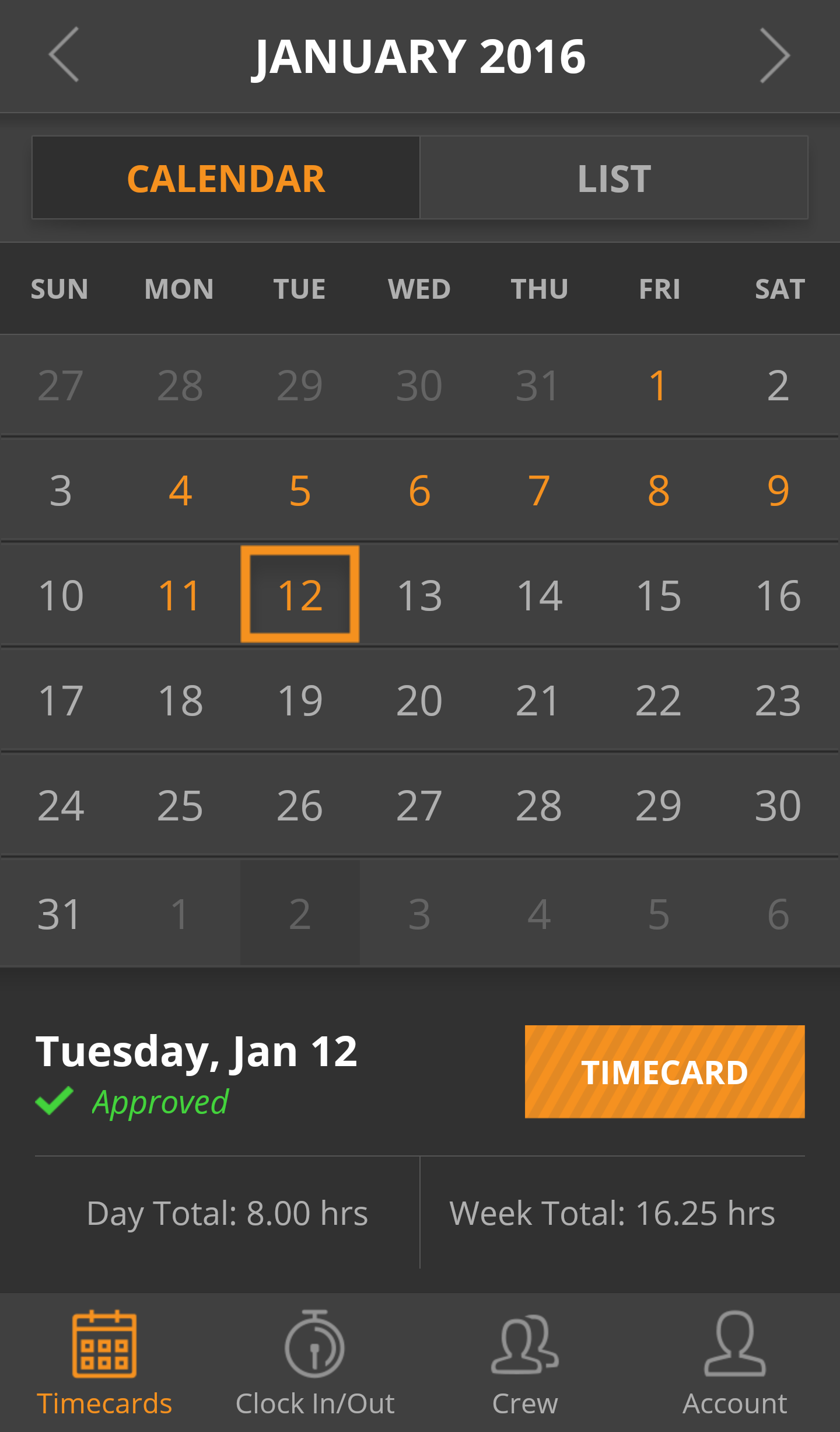
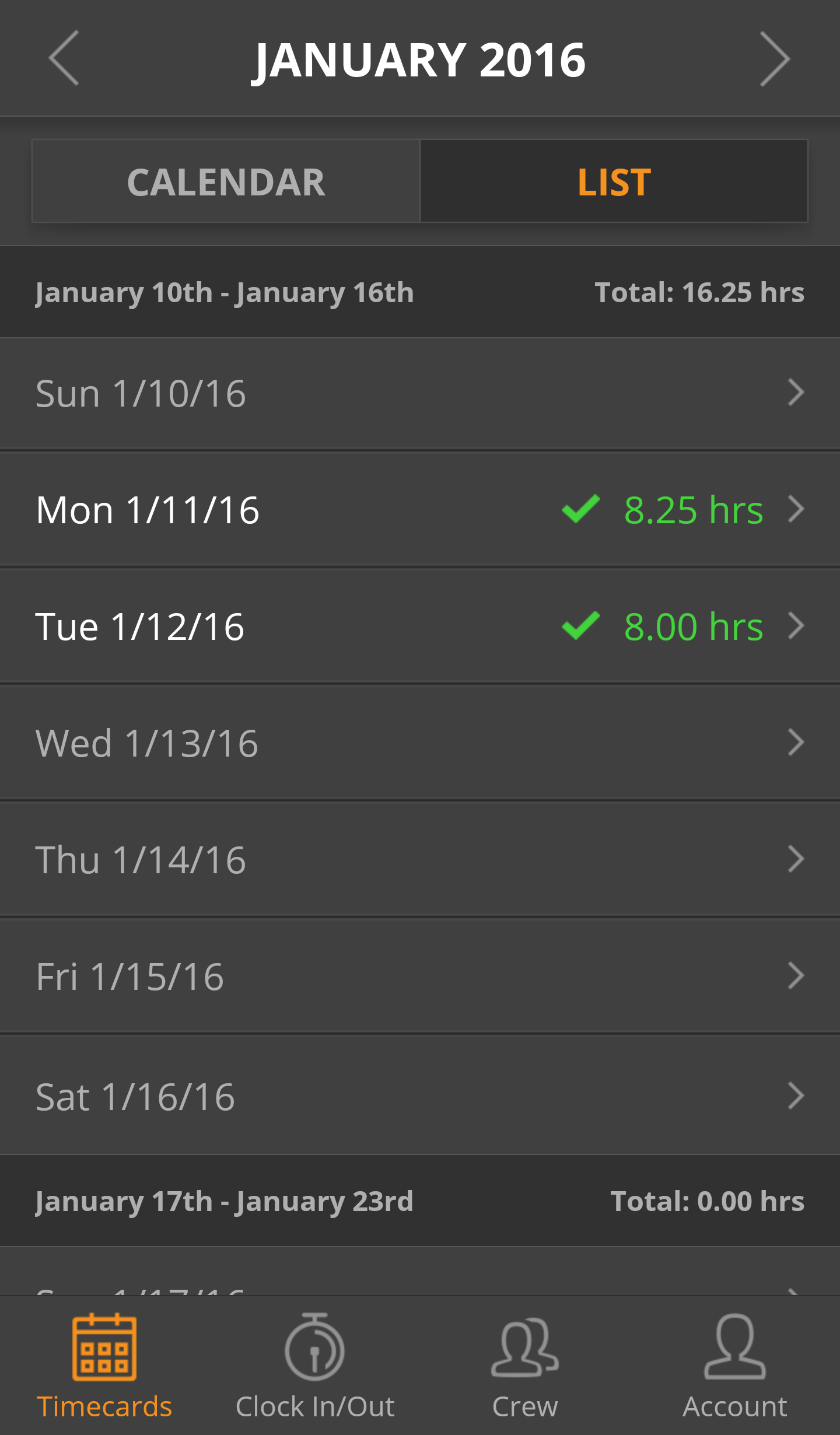
The BuildKeeper mobile app makes it easy for any crewmember to see their complete work history, including how many hours they've worked so far for the week. Click on the  icon in the bottom-left corner of the app to pull up the Calendar. You can also switch to the List view if you prefer.
To make time entries
- On the Timecards tab, select the date you are entering hours for.
- If you are in the Calendar view, tap the Timecard button.
- On the next screen, tap the + button near the top-right corner.
- Tap Select Job > and then select your Job, Job Stage, and Task.
- Tap Started at and Finished at to enter when you started and finished.
- Tap Notes to add notes as needed.
- Review the information you've entered. Once you're satisfied, tap Create on iPhone or
 on Android.
 - Repeat steps 3-7 to make additional time entries for the day.
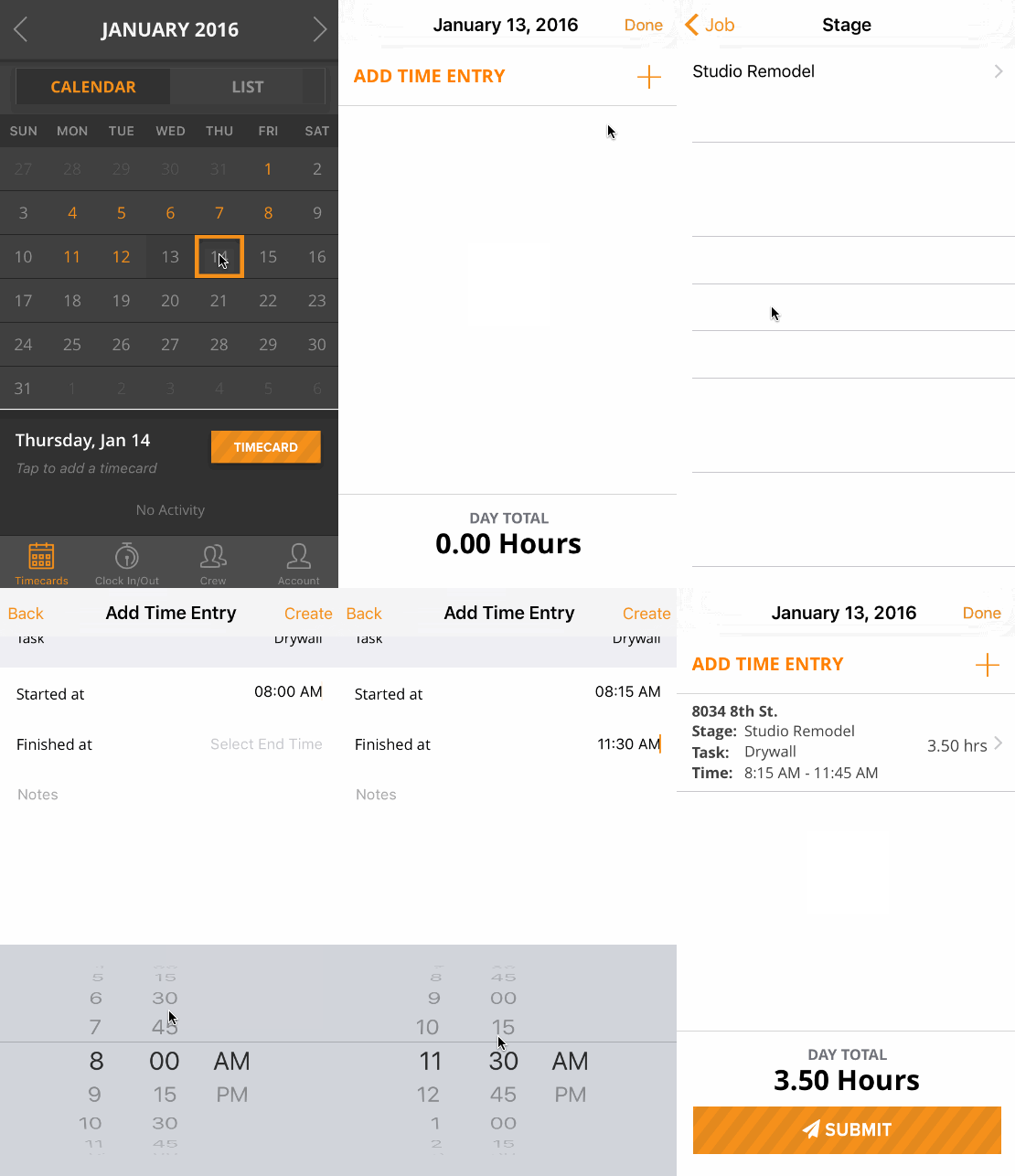
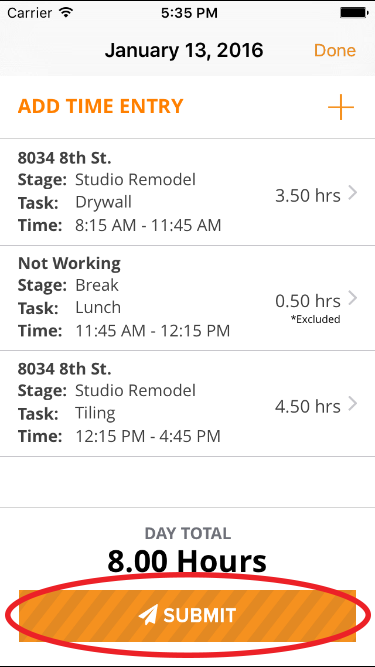
- On the Timecards tab, select the date for which you'd like to submit a timecard.
- If you are in the Calendar view, tap the Timecard button to open the timecard.
- On the next screen, confirm that all your time entries are accurate and accounted for. Edit or add more entries as needed.
- Tap Submit to send the timecard for approval. If you have Manager Level access, the timecard will be automatically approved.
Note: Once a timecard has been submitted, it cannot be edited unless the manger rejects it.