Jobs are central to how everything is done in BuildKeeper. Add each job that your crew is working on, and you'll be able to accurately track time, tasks and expenses.
To add a job
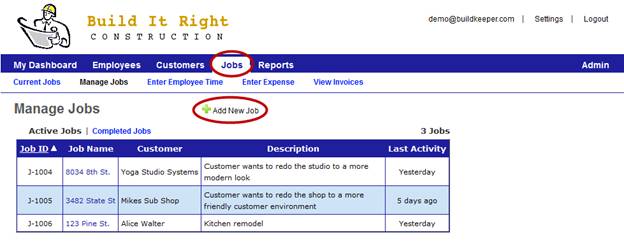
1. Under the Jobs tab, select Manage Jobs and then click  Add New Job.
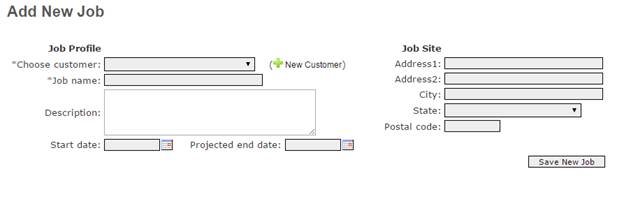
2. Complete the form as shown below. Then click Save New Job. If necessary, add a new customer by selecting New Customer.
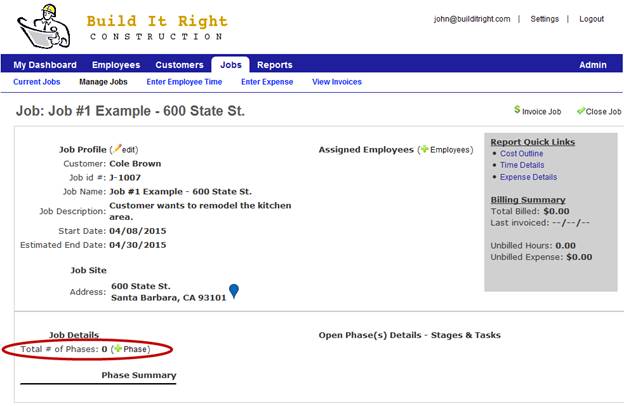
3. A basic job profile page is created. You must now add the job's individual phases. Under Job Details, click Phase.
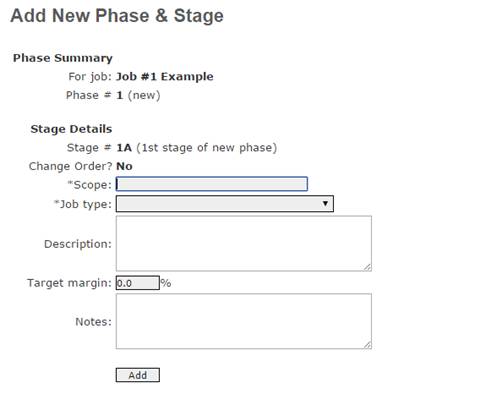
4. Enter the details for this particular phase, including the scope and type of job. Then click Add.
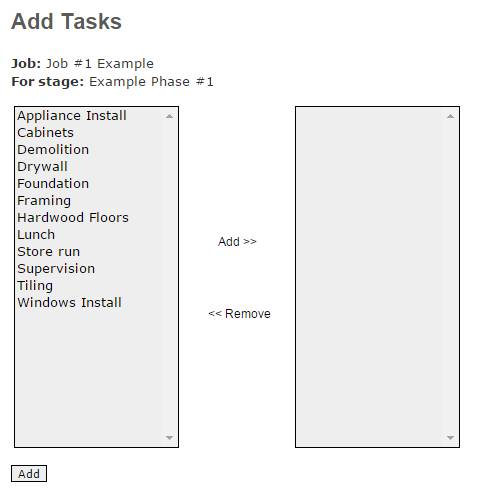
5. Select which tasks are associated with the job phase. Highlight the tasks in the left column and click Add>> to assign them. When finished, click Add. If you do not see tasks listed or would like to include more, view Setup Tasks and follow the steps.
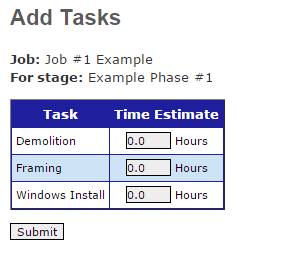
6. Enter how many hours you expect each task to take. This will let you measure progress against your estimate. Click Submit.
7. If you have multiple stages for a job, repeat steps 3-6 to add them to the job's profile page. Once you finish, you can begin to track time and expenses against the job.