Located under the Employees tab, the Manage Employees page is where you perform all personnel-related activities. This includes adding new employees, updating existing profiles, and closing accounts.
To add an employee:
If you are just getting started in BuildKeeper, we recommend that you enter your Managers and Field supervisors first.
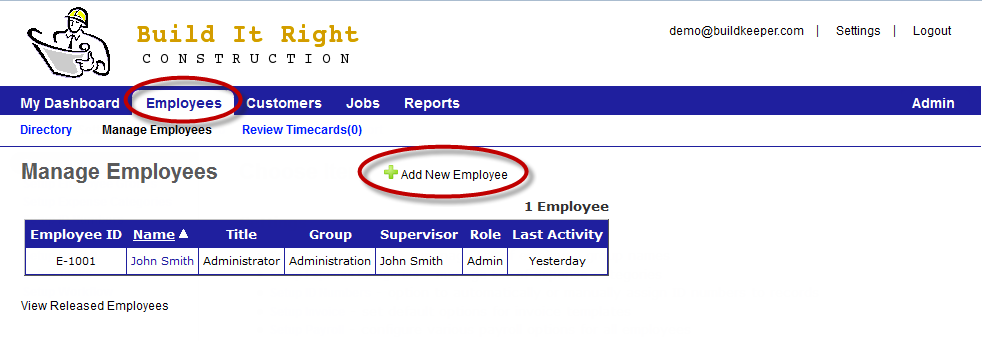
Under the Employees tab, click  Add New Employee. The Add New Employee page opens.
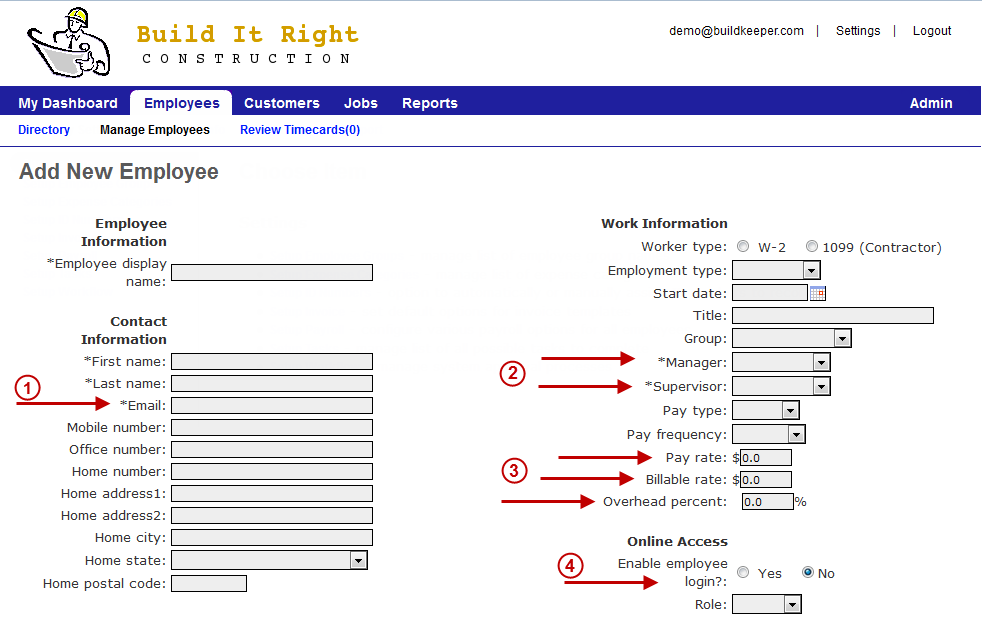
Fill in the basics like name, number, and address. The fields numbered above have additional significance in BuildKeeper:
- Email – An email address is needed for an employee to log in to BuildKeeper. Even if you choose not to allow employee access, this field is still required. We recommend that you use the actual email address of the employee, either personal or business.
- Manager & Field supervisor – You must assign a Manager and Supervisor for each employee. These can be the same individual or two different people. For their assigned employees, a Manager can both approve and create timecards, while a Field supervisor can only create timecards.
- Pay rate, Billable rate & Overhead percent – These required fields ensure that your labor costing is accurate and useful.
- Pay rate is the hourly or annual amount paid to the employee.
- Billable rate is the hourly amount the employee would be charged out at if you were to perform a Time & Materials job based on the employee’s individual bill rate.
- Overhead percent, also known as the labor burden, is the additional cost of employing the individual. Items such as payroll taxes, workers’ comp, and benefits should be considered to determine this percentage. For help calculating the number, see the FAQs.
- Online Access – This section is where you can give your employees access to BuildKeeper.
- Employee login allows an employee to sign in to BuildKeeper via the website or mobile app.
- Role is the level of BuildKeeper access you would like the employee to have. Timecard allows the user to only enter and submit timecards. Manager allows the user to submit and approve timecards for the employees they manage. Full gives the user complete access to your BuildKeeper account except for the Admin area.
To update an employee profile:
- From the Manage Employees page, click the name of the profile you want to edit.
- At the top of the profile, click
 Edit Employee.
 - Enter changes as needed.
- At the bottom of the page, click Update Employee to save your changes.
To close an employee account:
- From the Manage Employees page, click the name of the profile you want to edit.
- At the top of the profile, click Edit Employee.
- In the top-right corner of the screen, click
 Release Employee*.
 - Click OK to confirm.
*Accounts that have data associated with them will not be deleted but only removed from the main page. You can reinstate these accounts anytime by clicking View Released Employees at the bottom of the Manage Employees page, editing the employee's profile, and clicking Reinstate Employee.